Upgrading your computer’s RAM is one way to improve performance without replacing your entire system. Whether you use a PC for everyday work, gaming, video editing, or multitasking, having enough memory can help applications run more smoothly and reduce slowdowns.
However, buying more RAM does not automatically make every computer faster. You need to consider your current memory usage, hardware compatibility, RAM capacity, speed, and installation requirements before spending money.
In this guide, we explain six important things to know before upgrading your RAM in 2026.
What Is RAM and Why Does It Matter?
Random Access Memory (RAM) is your computer’s short-term working memory. It temporarily stores data that your operating system and applications need to access quickly.
When your computer runs out of available RAM, it may rely more heavily on storage to manage active tasks, which can make the system feel slower.
Adding more RAM can help with:
- Running multiple browser tabs and applications simultaneously.
- Improving performance in memory-intensive games.
- Working with large spreadsheets, images, and video projects.
- Reducing slowdowns caused by insufficient memory.
- Supporting demanding applications and multitasking.
However, RAM upgrades have limits. If your computer is slow because of an old processor, overheating, a failing drive, or other hardware problems, additional memory might not solve the underlying issue.
1. Check How Much RAM You Actually Need
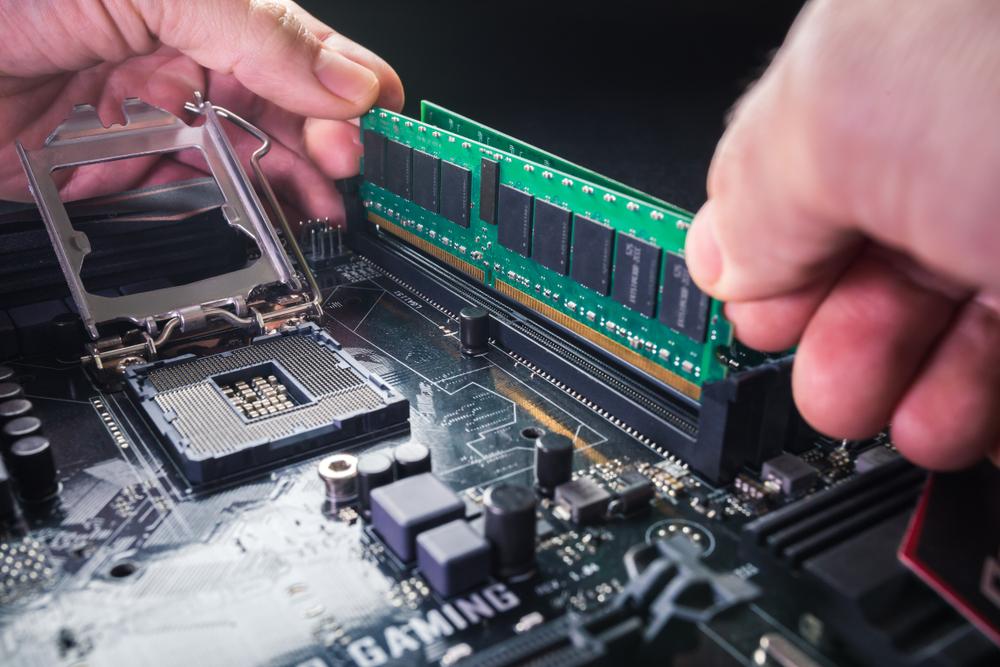
Before purchasing new memory, check how much RAM your computer currently has and how much it uses during normal workloads.
You can check memory usage through Task Manager on Windows by pressing Ctrl + Shift + Esc and selecting Performance → Memory.
Your ideal RAM capacity depends on how you use your computer.
| Usage | Suggested RAM capacity |
|---|---|
| Basic browsing, email, and office work | 8–16GB, depending on workload |
| Everyday multitasking and productivity | 16GB |
| Modern gaming and heavier multitasking | 32GB |
| Video editing, large creative projects, and demanding professional applications | 32–64GB or more |
| Virtual machines, large datasets, and specialist workloads | 64GB or more, depending on requirements |
These are practical starting points, not universal requirements. Check the recommended specifications for your applications and games.
For many users in 2026, 16GB is a reasonable mainstream baseline, while 32GB offers more headroom for gaming, multitasking, and creative work.
If your current RAM usage frequently approaches its capacity and applications slow down, an upgrade may help. If memory usage remains low, spending money on more RAM may deliver little noticeable improvement.
2. Check RAM Compatibility Before Buying
RAM compatibility is one of the most important factors to consider before upgrading. A memory module can have the correct capacity but still be incompatible with your computer.
Check these specifications before ordering:
RAM generation: DDR4 or DDR5
DDR4 and DDR5 are different memory standards and are not interchangeable. Your motherboard or laptop must support the correct generation. <Cite refs={[“turn537277search1″,”turn537277search9”]}/>
Do not assume that a newer RAM generation will work with an older computer.
RAM form factor
Desktop computers generally use full-size DIMM modules, while laptops with replaceable memory typically use smaller SO-DIMM modules. Some compact computers use other designs, and many modern laptops have memory soldered directly to the motherboard.
Maximum supported capacity and speed
Check your motherboard or laptop manufacturer’s specifications for maximum supported memory, supported speeds, and available slots.
A computer may accept a faster-rated RAM kit but operate it at a lower supported speed. The processor, motherboard, BIOS, and memory configuration can all affect compatibility.
Check the motherboard manual
For desktop PCs, consult the motherboard manual and its memory support documentation, sometimes called a Qualified Vendor List (QVL).
For laptops, check the exact model number on the manufacturer’s support website. Two laptops from the same product family can have different memory configurations.
You can also use a compatibility tool such as the Crucial Memory Upgrade Selector to identify potentially compatible modules.
3. Choose the Right RAM Speed and Generation
RAM capacity is important, but speed and compatibility also influence performance.
Memory specifications commonly include a generation, capacity, and data-transfer rate. For example, a DDR5 kit might be advertised as DDR5-6000.
A higher advertised speed does not guarantee a proportional performance improvement. Your hardware must support the speed, and actual performance depends on the workload and the rest of your system.
Is DDR5 worth upgrading to in 2026?
DDR5 can offer higher memory bandwidth than DDR4, making it useful for compatible modern systems. However, you cannot upgrade from DDR4 to DDR5 by replacing the memory sticks alone. The motherboard and processor platform must support DDR5. <Cite refs={[“turn537277search1″,”turn537277search5”]}/>
Use these guidelines:
- Existing DDR4 computer: A compatible DDR4 upgrade may be the most cost-effective choice.
- New computer build: Compare the total cost and capabilities of current DDR4 and DDR5 platforms where both are available.
- Existing DDR5 computer: Buy a compatible DDR5 kit that meets your capacity and performance requirements.
- Gaming or professional workloads: Check real-world benchmarks for your processor and applications before paying extra for higher memory speeds.
Do not choose RAM based on generation or speed alone. A compatible capacity upgrade may make a bigger difference than a small increase in memory frequency.
4. Install RAM in the Correct Configuration
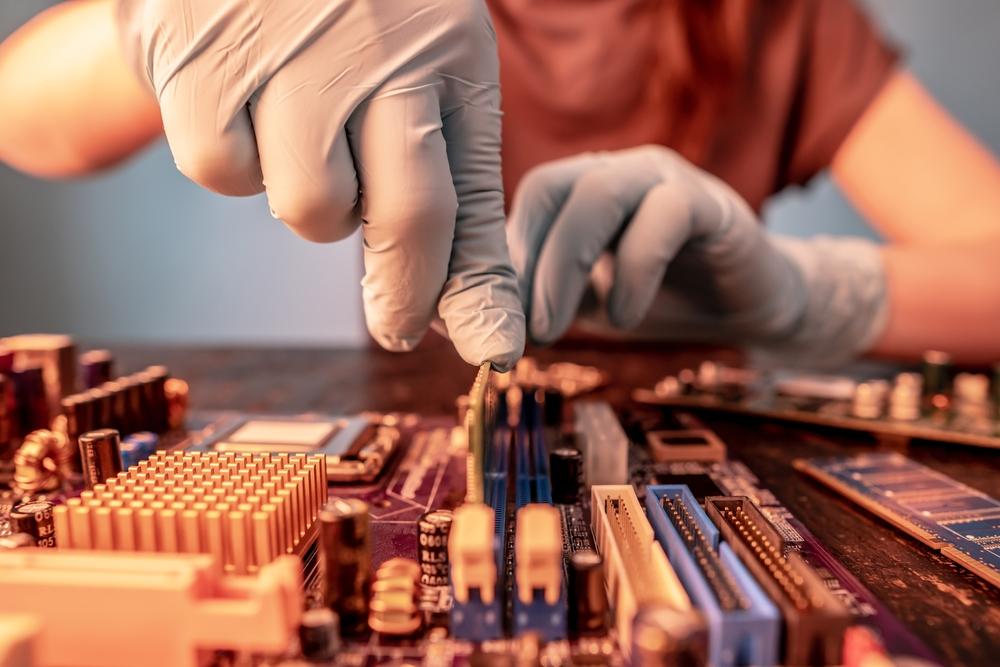
Installing RAM is straightforward on many desktop computers, but the correct configuration matters.
Most desktop motherboards have multiple memory slots. When installing two modules, the recommended slots are often A2 and B2, but this varies by motherboard. Always follow the motherboard manual rather than assuming that any two slots will provide the best configuration.
Why dual-channel memory matters
Dual-channel memory allows the system to transfer data across two memory channels when the hardware and configuration support it. This can improve memory bandwidth and may benefit some games and applications.
For example, a compatible 32GB configuration using two 16GB modules may offer better memory bandwidth than a single 32GB module. The actual performance difference depends on the system and workload.
Before installing RAM:
- Shut down the computer and disconnect its power supply.
- Follow the manufacturer’s instructions for opening the case or accessing the memory compartment.
- Take precautions against static electricity.
- Align the module’s notch with the slot.
- Insert the module firmly and evenly without forcing it.
- Confirm that the retention clips are engaged.
- Close the computer and verify that the full memory capacity is detected.
Refer to the Crucial desktop RAM installation guide for additional installation precautions.
Laptop owners: Confirm that the RAM is upgradeable before opening the device. If the memory is soldered, a physical RAM upgrade may not be possible.
5. Avoid Mixing Incompatible or Poorly Matched RAM Modules
If you are adding RAM to an existing computer, it may be tempting to buy any module with the same advertised capacity.
However, mixing modules with different speeds, timings, capacities, or specifications can introduce compatibility or stability issues.
Different modules may work together, but the system can run them at a lower common speed or use more conservative settings. In some cases, the combination may not work reliably.
For the best chance of a stable upgrade:
- Prefer a matched RAM kit when replacing or expanding memory.
- Confirm that the modules use the correct DDR generation and form factor.
- Check motherboard compatibility and supported configurations.
- Avoid paying for speeds your hardware cannot use.
- Verify stability after installation.
If you already have one RAM module and want to add another, check the specifications of the existing module and your motherboard before purchasing. When reliability matters, replacing the old modules with a compatible matched kit may be a better option.
6. Consider Your Budget and Other Performance Upgrades
RAM is only one component of your computer’s performance. Before upgrading, identify the actual bottleneck.
For example:
- Insufficient memory: Add compatible RAM if your workload regularly exceeds available capacity.
- Slow storage: Replacing an old hard drive with an SSD may improve startup and application loading times.
- Processor limitations: A RAM upgrade cannot eliminate CPU bottlenecks in demanding games or professional applications.
- Overheating: Cleaning dust and addressing cooling problems may help restore performance.
- Graphics limitations: Gaming performance may depend more on the GPU than on additional system memory.
If your computer already has enough RAM, you may get better value from a different upgrade.
Also compare the total cost of the memory, installation, and any additional components you might need. If your system is old and supports only limited memory capacity, replacing the computer could sometimes be more economical than upgrading it.
Final Thoughts
Upgrading RAM can be a practical way to extend the life of a computer, improve multitasking, and support demanding applications. The key is to choose the right capacity, verify compatibility, select a suitable speed, and install the modules correctly.
For most users, 16GB is a sensible starting point for everyday computing, while 32GB is worth considering for modern gaming and heavier multitasking. Professional workloads may require more.
Before buying, check your computer’s memory usage, motherboard or laptop specifications, and the cost of alternative upgrades. A well-planned RAM upgrade can improve your experience without unnecessary spending.
Frequently Asked Questions
1. How much RAM do I need in 2026?
For everyday computing, 8–16GB may be sufficient depending on your applications. For mainstream multitasking, 16GB is a reasonable baseline. For modern gaming, heavier multitasking, and many creative workflows, 32GB provides additional headroom.
2. Will upgrading RAM make my computer faster?
It can, especially if your computer regularly runs out of available memory. If the system already has enough RAM, the improvement may be small. Processor, storage, graphics, and cooling limitations can also affect performance.
3. Can I mix different RAM brands?
Sometimes. Modules from different brands may work together if they are compatible, but differences in speed, timings, capacity, and other specifications can cause the system to use lower settings or become unstable. A matched kit is generally the safer choice.
4. Is DDR5 better than DDR4?
DDR5 provides higher memory bandwidth and is used by many newer platforms, but it is not automatically the best upgrade for every computer. Your motherboard and processor determine which generation you can use. DDR4 remains a practical option for compatible systems.
5. Should I install one 32GB RAM stick or two 16GB sticks?
If your system supports dual-channel operation, two compatible 16GB modules can provide more memory bandwidth than one 32GB module. However, check your motherboard’s supported configuration and leave room for future expansion if that is important to you.
6. Can I upgrade RAM on any laptop?
No. Some laptops have replaceable SO-DIMM memory, some have partially upgradeable memory, and others use soldered RAM that cannot be replaced through a normal upgrade. Check the exact laptop model before purchasing memory.
7. How do I know if my RAM upgrade worked?
After installation, open Task Manager on Windows and check the Performance → Memory section. Confirm that the expected capacity is detected. If the computer fails to boot or shows less memory than expected, power it off and check module seating and compatibility.
8. Does faster RAM improve gaming performance?
It can improve performance in some games, particularly when memory bandwidth or latency affects the system. However, the benefit varies by game, processor, graphics card, and memory configuration. Compare benchmarks for your specific hardware before spending extra on faster RAM.